
Pictures
Key art, sprites and covers, where every edit is a new version you can step back through.
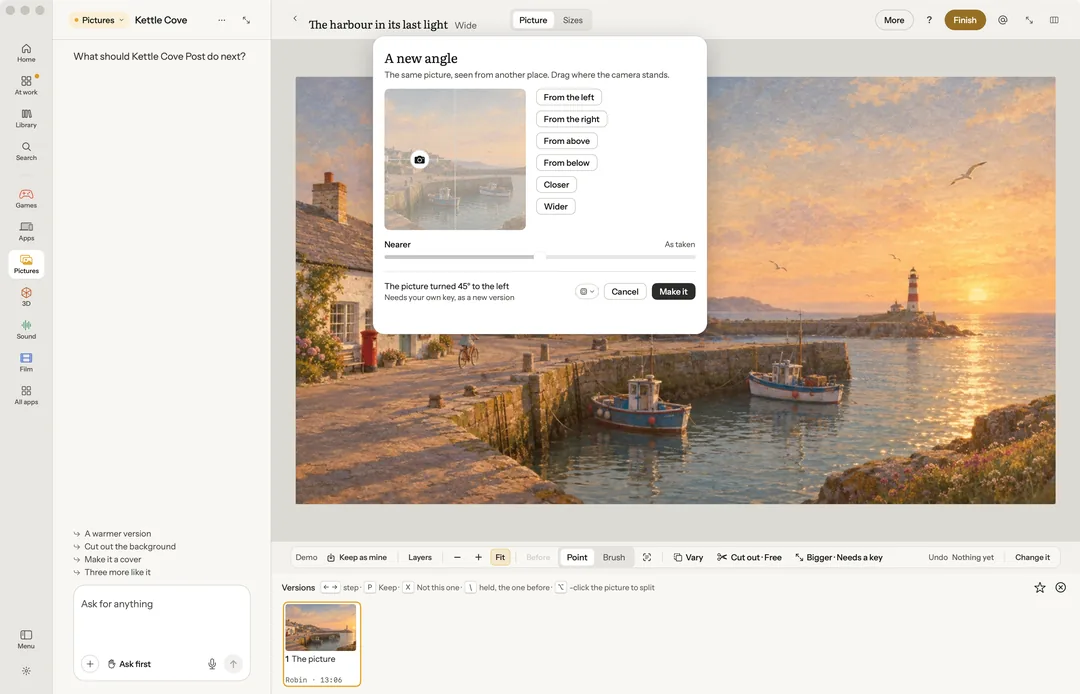
Pictures is where you make and change a picture: key art, a sprite, a cover. Every edit lands as a new version beside the one before, so nothing you had is lost.
Open a picture, or ask in the chat ("What are we drawing?") and Robin makes one.
Robin can do this too. Ask in the chat and Robin uses the same presses: it picks the subject where you point or a part you name, erases, cuts out, straightens, tones, crops and adjusts, compares versions, and redraws. A paid redraw is put to you with its price first.
On the rail
The four presses you reach for most. All four are free and run on your Mac. If the Mac's eraser cannot be got ready, or the Mac cannot cut the subject out, the press offers your picture key instead, priced.
- Erase: paint over something and it is taken out, filled in from what is around it. The first time, Robin fetches the eraser once (about 196 MB) and says how far along it is.
- Enhance: light, colour and skin balanced in one press, with a Strength slider.
- Cut out the background: the subject kept, the background taken away.
- Looks: eight looks (vivid, golden, cool, faded, film, chrome, mono, noir), with an Amount slider.
The rail's tools are Edits, Brush, Point and Compare.
Pick the subject with a click
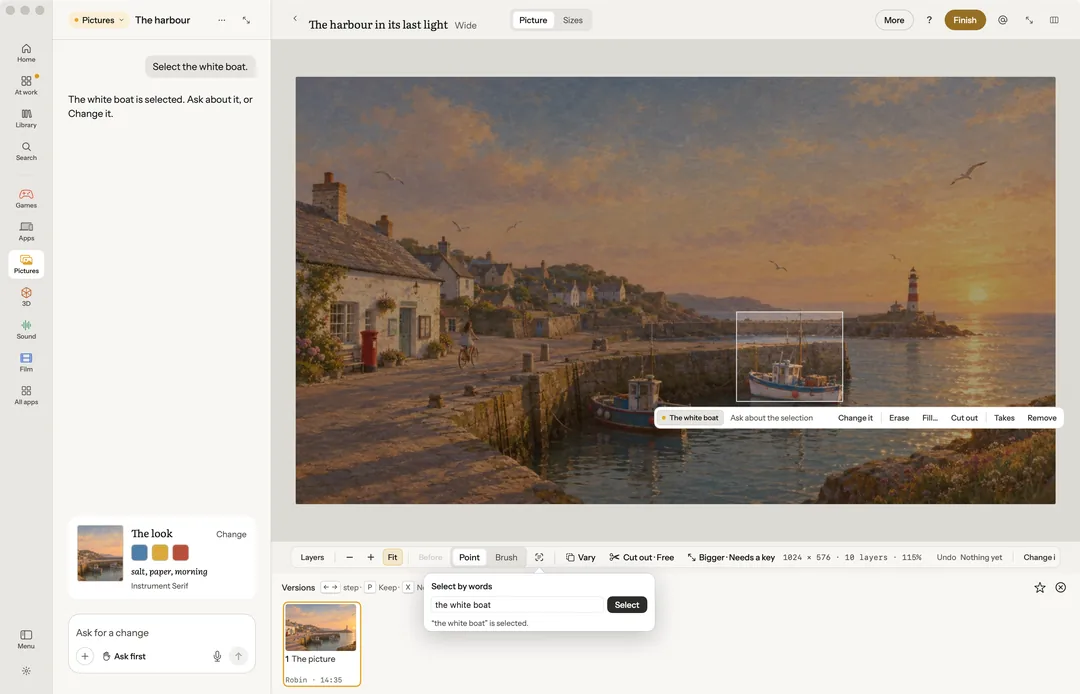
Click someone or something in the picture and it is chosen, ready to erase, fill or change. Or drag a box over a part and ask about just that part in the chat.
Select by words… (S): type what to select, "the sky" or "the dog", and press Select. Your Mac finds people, the subject, the background and the things it can name, for free. When it cannot find it, Find it on your key looks with your own key, about 1¢, its price on the press.
In More
Crop and adjust (free): Crop (shape, straighten, turn, flip; Auto straighten levels by the horizon), Adjust (Auto sets the light and colour) (light, colour, levels, curves and each hue on its own, with a histogram), Apply a look file… (a .cube file) and Layers (text, shapes and lifted parts, each with its opacity and blend).
Change the picture:
- Fill… paints what you describe into the part you painted. Paid, priced on the press.
- Replace the background cuts the subject out on your Mac and puts it on a new background.
- Make it bigger draws the picture at a larger size. Paid on your own key, priced by its size; there is no route for it on your Mac.
- Make a meme of this picture… Free.
Redraw it: each opens a panel first and shows its price before anything is sent.
- A new angle…: drag where the camera stands, round the picture, higher or lower, or nearer, and the same scene comes back seen from there.
- Relight…: the light's direction, its warmth and the time of day.
- Extend to a new shape…: the picture carried out to 16:9, 9:16, 1:1 or 4:5.
- With someone from the cast…: a person from the project's cast put into the picture, or a new picture of them.
- Combine pictures…: up to four pictures made into one.
Brand and sizes: Brand kit and sizes reads a logo's colours, checks their contrast and makes twelve store and social sizes. Free.
Save and copy: Save a copy… and Copy the picture.
If Pixelmator Pro is on your Mac, More also has Open in Pixelmator Pro and Bring back from Pixelmator Pro, so a picture can go there and come back as a new version.
What it costs
Everything on the rail, and Crop, Adjust, Layers, looks and the brand kit, is free on your Mac. The redraws, Fill and Make it bigger use a picture provider on your own key, added in Settings › Connectors › Providers. Each says its price on the press; with no key it says Needs your own key, and pressing it says where to add one, with nothing sent or charged. See Your keys and what things cost.
Versions
Every edit is a version. Step through them with ← and →, keep one with P, set one aside with X, hold \ to see the one before, and ⌥-click to split the picture with the one before.
Keys
| Key | What it does |
|---|---|
| ⌘[ ⌘] | Brush smaller, bigger |
| I | Change it |
| S | Select a part by words |
| E | Erase |
| F | Fill |
| C | Cut out |
| T | Takes |
| L | The layers column |
| ↑ ↓ | Nudge the layer (with ⇧, ten points) |
| ⌘L | Ask about the selection |
| ⌘= ⌘− 0 | Zoom in, out, fit |
| Esc | Let go, or close the before and after |
| ? | Help |